

Amazon Firestick
Follow these steps to install and set up the IPTV app on your Amazon Firestick.
Go to Settings
From the Firestick home screen, navigate to Settings at the top of the screen.
Select My Fire TV
In Settings, select 'My Fire TV' or 'Device' depending on your Firestick version.
Enable Apps from Unknown Sources
Go to Developer Options and enable 'Apps from Unknown Sources'.
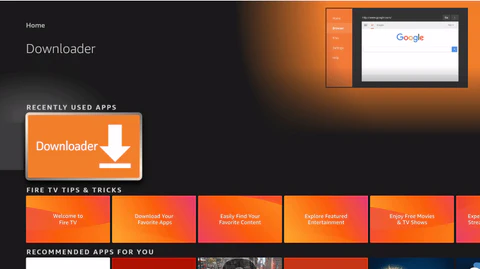
Install Downloader App
Go back to the home screen, search for 'Downloader' and install it from the Amazon App Store.
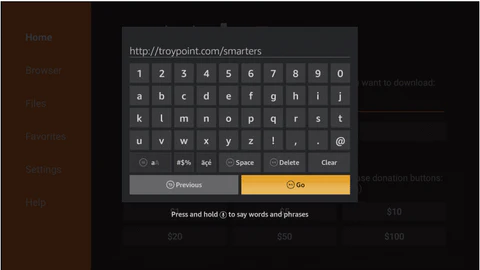
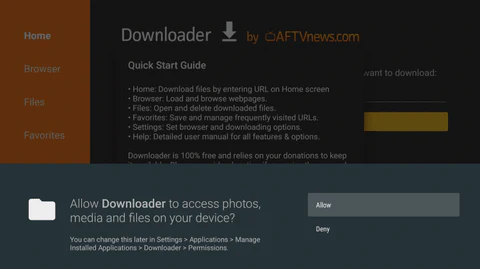
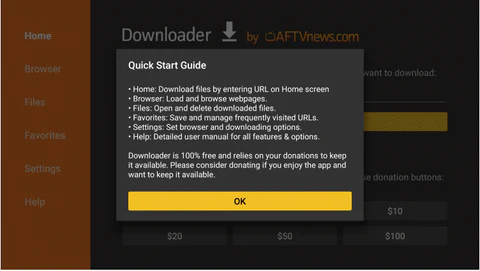
Open Downloader
Open the Downloader app and grant it the necessary permissions.
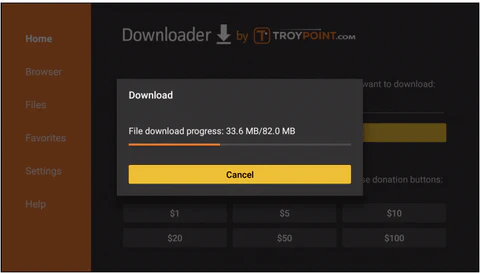
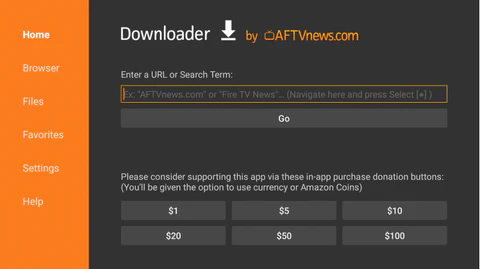
Enter the Download URL
In the URL field, enter the download link provided in your welcome email for the IPTV app.
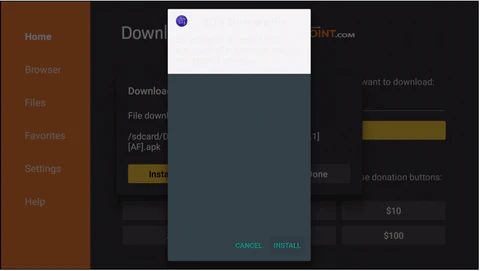
Download the APK
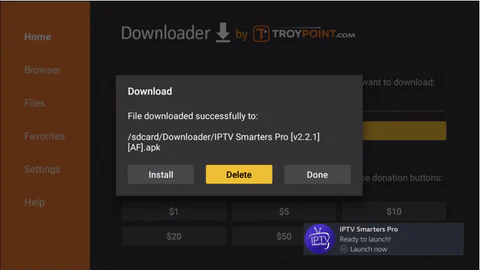
The Downloader app will begin downloading the IPTV application APK file.
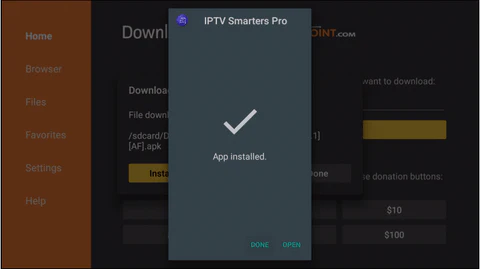
Install the App
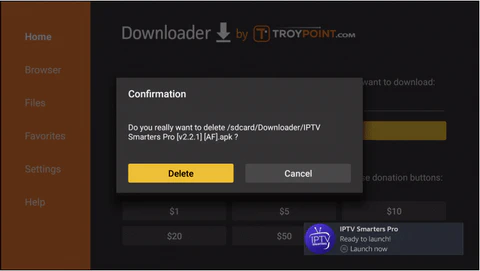
Once downloaded, select 'Install' to install the IPTV application on your Firestick.
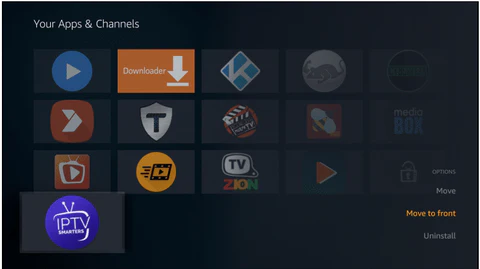
Open the IPTV App
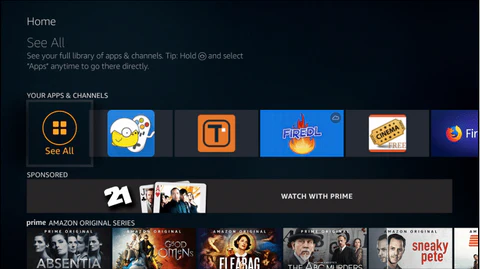
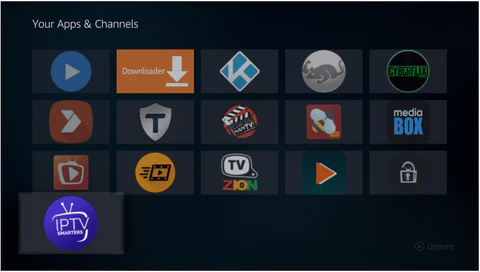
After installation, open the IPTV app from your Apps section.
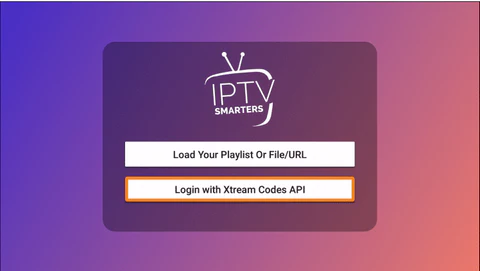
Select Login Method
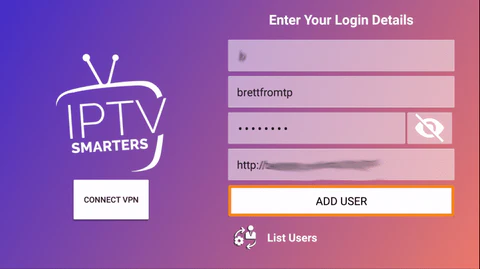
Choose 'Xtream Codes API' as your login method.
Enter Server URL
Enter the server URL from your welcome email credentials.
Enter Username
Enter your username provided in the welcome email.
Enter Password
Enter your password from the welcome email credentials.
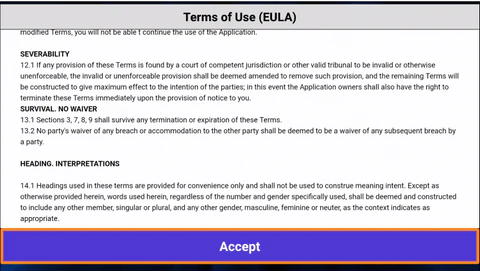
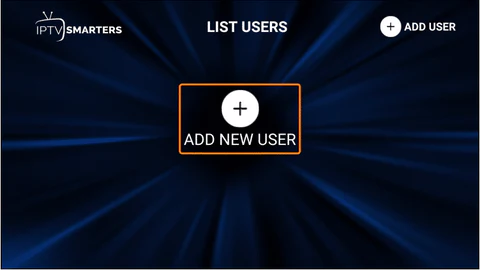
Click Add User
Click 'Add User' to log in with your credentials.
Loading Channels
Wait for the app to load all available channels and content.
Browse Content
You can now browse through Live TV, Movies, and Series categories.
Start Watching
Select any channel or content to start watching. Enjoy!
Installation Terminée !
Votre Amazon Firestick est configuré. Profitez de 20 000+ chaînes en qualité 4K et HD.

Besoin d'Aide ?
Vous avez des difficultés avec l'installation ? Notre équipe de support 24/7 est prête à vous aider. Contactez-nous à tout moment.